
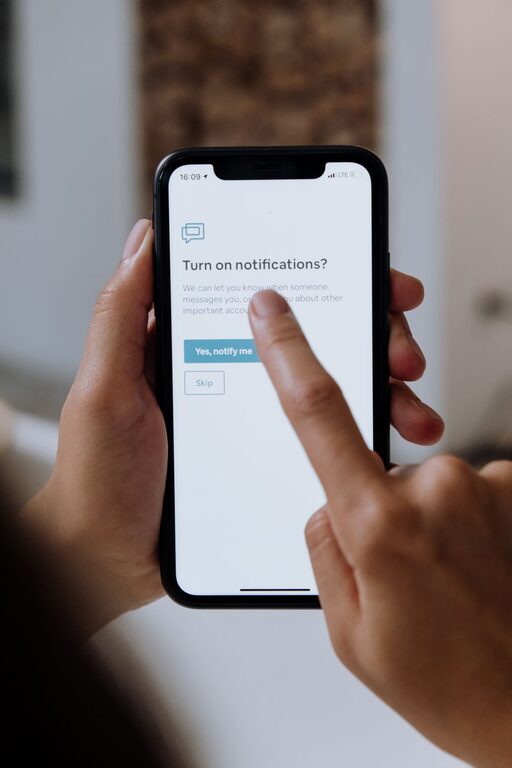
In today’s connected world, notifications continuously demand our attention — from emails, social media alerts, messaging apps, to calendar reminders. While notifications can be helpful, they often lead to distractions, stress, and decreased productivity if left unchecked. Setting boundaries with notifications is a practical way to reclaim your focus, protect your mental space, and create a healthier relationship with technology.
This article will guide you through effective tips to manage and set boundaries with your notifications, helping you stay in control while still staying informed.
Why Setting Notification Boundaries Matters
Before diving into practical steps, it’s important to understand why managing notifications is necessary:
– Reduces distractions: Constant alerts can interrupt your workflow and thought process.
– Enhances focus: Limiting notifications allows you to concentrate on tasks without unnecessary interruptions.
– Improves mental well-being: Less noise from devices reduces stress and prevents feeling overwhelmed.
– Supports work-life balance: Controlling notifications helps separate work from personal time.
– Encourages mindful technology use: You become more intentional about when and how you engage with your devices.
Step 1: Evaluate Your Current Notification Habits
Start by assessing which notifications you receive and how they affect you.
– Review your apps: Check which apps send notifications and how often.
– Note your reactions: Are there certain notifications that trigger anxiety or frequent checking?
– Identify essential vs non-essential alerts: Determine which notifications truly need your immediate attention.
Step 2: Customize Notification Settings on Devices
Most devices allow you to personalize notifications to fit your preferences.
For Smartphones and Tablets
– Use Do Not Disturb mode: Schedule quiet hours or enable it during meetings or focused work.
– Turn off non-critical notifications: Disable alerts from apps that aren’t urgent or important.
– Prioritize notifications: Set priority for contacts or apps, so only important alerts come through immediately.
– Group notifications: This reduces the number of times your device alerts you by bundling messages together.
For Computers
– Adjust settings per app: Disable or mute notifications for non-essential apps.
– Schedule Focus or Quiet hours: Many operating systems offer modes to limit interruptions.
– Use browser controls: Silence or block push notifications from websites that are not crucial.
Step 3: Set Specific Times to Check Notifications
Instead of responding to notifications as they arrive, create intentional time blocks to review them.
– Designate notification checks: For example, check emails only at certain times—mid-morning, lunchtime, and late afternoon.
– Avoid constant switching: Staying focused on deep work is easier when you avoid frequent task switching due to notifications.
– Inform others if necessary: Let colleagues or friends know your preferred communication times to set expectations.
Step 4: Use Technology Tools to Manage Notifications
Consider tools and apps designed to help control distractions.
– Focus apps: Apps like Forest or Focus@Will encourage concentration and limit interruptions.
– Notification management apps: Some apps consolidate notifications or provide detailed control over alerts.
– Automation: Use features like IFTTT or shortcuts to automate notification responses or silencing during certain activities.
Step 5: Create Physical and Digital Boundaries
Sometimes, boundaries extend beyond notification settings.
– Create device-free zones or times: For example, no phones at the dining table or during family time.
– Mute or silence devices: At night or during important tasks, mute notifications completely.
– Keep devices out of reach: Placing your phone in another room can reduce temptation to check notifications.
Step 6: Reflect and Adjust Regularly
Notification management is not a one-time setup.
– Review your settings monthly: Adjust based on evolving needs or routines.
– Stay flexible: If certain notifications become more or less important, update their priority.
– Listen to your well-being: Notice how changes affect your stress and productivity, and adapt accordingly.
Bonus Tips for Successful Notification Boundaries
– Turn off badge app icons: These small red dots can be distracting.
– Unsubscribe from unnecessary emails: Reduce the volume of incoming alerts.
– Use vibration or visual alerts: Instead of sounds, for less intrusive notification signals.
– Practice mindfulness: Become aware of how notifications affect your mood and focus.
Conclusion
Setting boundaries with notifications empowers you to take charge of your attention and improve your overall quality of life. It’s about striking a balance — staying connected without being overwhelmed. By evaluating your habits, customizing your settings, scheduling check-ins, leveraging helpful technology, and creating clear physical and digital limits, you can enjoy a calmer, more focused experience with your devices.
Remember, the goal is not to eliminate notifications entirely but to make them work for you, not against you. Start small, stay consistent, and enjoy the benefits of a more mindful digital life.